HQDFM Download & Installation Guide
Follow NextPCB on LinkedInThank you for choosing HQDFM. Click the button below to start your free download.
Key Features & Compatibility:
- Universal Parsing: Supports mainstream CAD files, Gerber, ODB++ and KiCad file formats.
- Flexible Export: Easily export Gerber, BOM, component coordinates, assembly drawings, PDF, and ODB++.
- Comprehensive Manufacture Review: Over 1200+ detailed DFM & DFA checks and footprint checking capabilities for over 6 million parts.
- Manufacturing Suite: Impedance Calculator, Smart Panelization, Centroid file editor, and more.
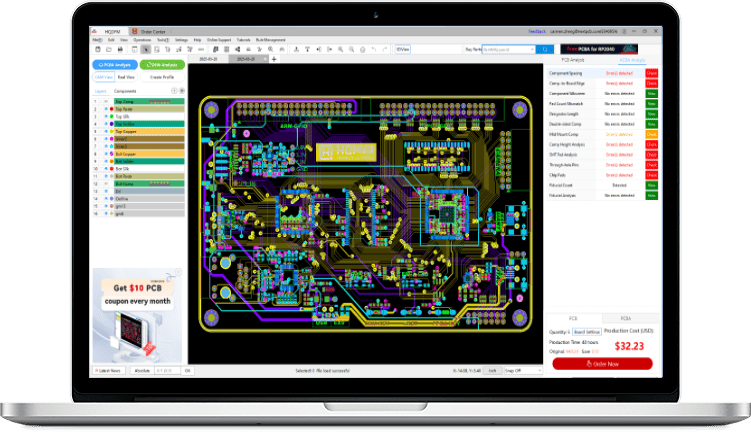
Installation Guide
- Locate: Find the downloaded "
HQDFM_en.zip"file in your computer's downloads folder. - Extract & Install: Extract the archive and double-click “HQDFM International Setup.exe” inside to run the installation.
- Security Notice: If Windows pops up a "Windows protected your PC" blue warning, click "More info" and then click "Run anyway" to proceed. If you use third-party security software that blocks the installer, check your antivirus Quarantine, restore the file, and select "Allow on device" or "Add to exclusions/trusted list".
HQDFM Support & FAQs
A: Currently, HQDFM is officially designed for Windows PC only (Windows 10 / 11, 64-bit). Mac and Linux versions are not available.
A: Don't worry, this is just a false positive. HQDFM is 100% safe. Click "More info" and select "Run anyway" if Windows warns you.
A: Unlike web viewers that often fail on complex files, the HQDFM offers stable, smooth viewing for files online tools can't open. It supports mainstream CAD, Gerber, ODB++, and KiCad formats, while integrating 1,200+ DFM & DFA checks for complete pre-production inspection.
A: No license key is required. Simply open the software and log in with your NextPCB or HQ Online registered account to start using it.
A: Use a stable network and a modern browser (Chrome or Edge). If issues persist, contact support@nextpcb.com
- Network instability: Restart the software or try again.
- Antivirus/Firewall: Add the software to your trusted list.
- Corporate network: Ask IT to whitelist the required domains and ports. (contact us for the latest domain and port info).
A: You can view the online DFM user manual, download the offline PDF version, or access it directly within the software by navigating to the Tutorials menu and selecting HQDFM User Manual.
A: The DFM client temporarily doesn't support Google one-click sign-in (though your Google-associated email is fully supported). For your first login, please click "Forgot Password" on the login page, use your Google email to reset the password, and then sign in with your email and new password.
A: This is usually caused by missing OpenGL support. Please enable "3D Hardware Acceleration" in your virtual machine settings and install the latest guest additions (e.g., VMware Tools), then restart the software.
HQDFM Video Tutorial
How to use HQDFM to perform PCB DFA Analysis Part 1: Footprint checking
How to use HQDFM to perform PCB DFA Analysis Part 2: BOM Quantity Checking
How to use HQDFM to perform PCB DFA Analysis Part 3: Compare BOM and Centroid Data
How to use HQDFM to perform PCB DFA Analysis Part 4: Check through-hole component footprints
How to use HQDFM to perform PCB DFA Analysis Part 5: Check through-hole component footprints #2
How to use HQDFM to perform PCB DFA Analysis Part 6: Check for interfering components
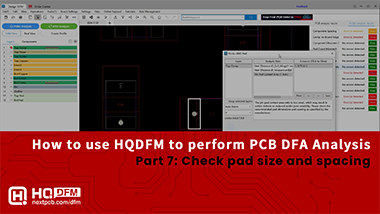
How to use HQDFM to perform PCB DFA Analysis Part 7: Check pad size and spacing